

JPG to DXF Converter

Upload a JPG or PNG and download a DXF with closed outlines in millimetres, ready for laser cutters, CNC routers and CAD.

  • Free: 10 images a day
  • Closed outlines, mm units
  • No sign-up
Outline

Closed outlines on a single layer, background removed — best for laser cutting and CNC.

Free: one image at a time. Paid: drop up to 50 images at once.

Account balance unavailable

Not stored on our servers

Paid features: more images and batch conversion

From artwork to cut file

How to convert JPG to DXF

  1. 1

    Upload a JPG or PNG

    Choose a file within 10 MB; WebP and the first GIF frame are accepted too. A long edge above 2000 px is reduced before tracing, while the download retains the original dimensions.

  2. 2

    Pick One colour or Keep colours

    Choose One colour to cut a silhouette or clean line drawing; use Keep colours when separate colour layers need different engraving or cutting settings.

  3. 3

    Download the DXF and set the final size in your software

    Pixels become millimetres at 96 DPI. After import, enter the physical width you intend to make before sending anything to a machine.

File structure and scale

What's inside the DXF

  • AutoCAD R12 DXF ($ACADVER = AC1009), readable by LightBurn, Fusion 360, AutoCAD and Inkscape.
  • Each boundary is a closed POLYLINE with VERTEX records and flag 70 = 1. Holes are separate closed boundaries. There are no splines, arcs, text, fills or embedded images.
  • Curves are divided into short straight segments within 0.1 px of the traced curve (about 0.026 mm); this can produce many nodes.
  • Millimetres are recorded as $INSUNITS = 4 and $MEASUREMENT = 1. Coordinates follow mm = px × 25.4 ÷ 96.
  • One colour produces a single layer. Keep colours separates colours into COLOR_01, COLOR_02… layers (up to 16), using the nearest AutoCAD colour index. All layers use the CONTINUOUS line type.
Pixel to millimetre conversion at 96 DPI
PixelsMillimetresInches
500132.2925.208
1000264.58310.417
1200317.50012.5
1500396.87515.625
2000529.16720.833

1500 px wide = 396.875 mm. Always verify the intended physical size after import.

Download and inspect

Sample: a real JPG and the DXF it produces

Keychain JPG artwork drawn for this page
Original JPG
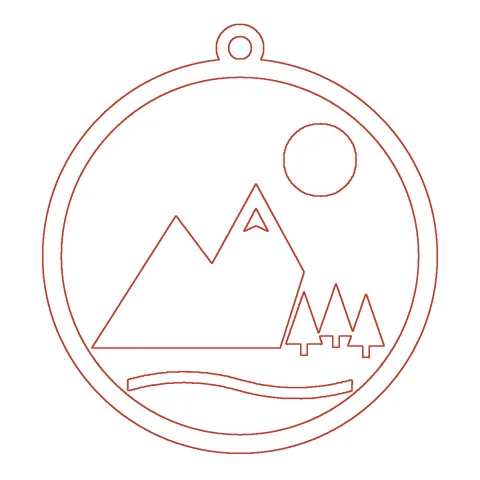
Closed outlines from the DXF file
Actual DXF boundaries

Download sample JPG (54 KB) · Download sample DXF (347 KB)

This keychain artwork was drawn for this page. Its DXF is the unedited One colour output of this converter; it opens at 317.5 × 317.5 mm because the JPG is 1200 px wide.

Measured output

Same JPG, three ways

Compare the colour trace, a single-colour preparation and a smaller copy before choosing what to send to your cutter.

Same JPG converted three ways, measured output
SettingSourceClosed outlinesNodesLayersOutlines around the whole imageSpecks under 1 mmDrawing sizeDXF size
Keep colours1200 × 1200 px JPG2,19731,0801629317.5 × 317.5 mm1.6 MB
One colour1200 × 1200 px JPG87,372100317.5 × 317.5 mm347 KB
One colour400 × 400 px JPG82,634100105.833 × 105.833 mm121 KB
  • Keep colours on a JPG produces 2,197 outlines, most of them from the colour halos that JPG compression leaves along edges, including 9 specks, across 16 layers. It also creates 2 contours hugging all four edges: the white background becomes a shape. A laser following that frame cuts the whole board into a rectangle; choose One colour by default for laser and CNC work.
  • One colour leaves 8 closed outlines for the actual artwork, with 7,372 nodes on 1 layer and 0 outer frames.
  • The 400 px JPG still has 8 outlines but only 2,634 nodes, and its edges follow pixel steps. At 96 DPI it opens at 105.833 mm; enlarging it magnifies those steps too. Upload the largest original you have.

Measured by running this site's converter and DXF export on the sample image; your own image will give different counts.

Import and resize

Open the DXF in your software

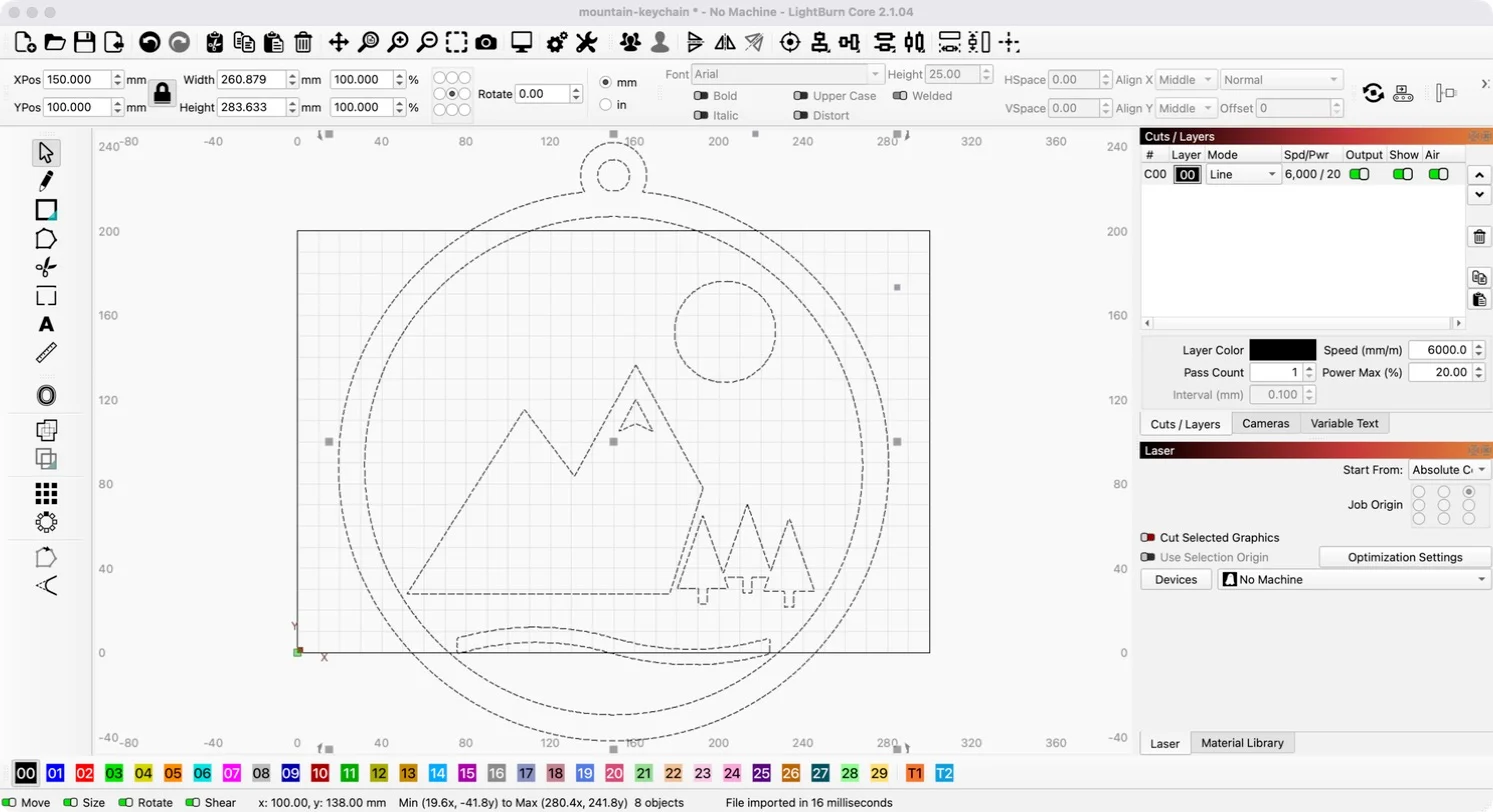
The sample DXF selected in LightBurn: 8 objects, width 260.879 mm, height 283.633 mm
The sample DXF in LightBurn 2.1.04 on macOS (trial, no machine connected): 8 objects on one layer, 260.879 × 283.633 mm. Open full size

LightBurn

Use File → Import or drag the file into the window. In our test the sample came in as 8 closed objects, and the Width and Height boxes in the top toolbar read 260.879 × 283.633 mm: the box around the outlines, smaller than the 317.5 × 317.5 mm image because the artwork has a margin. Lock the aspect ratio, then enter your desired width. The One colour file has 1 layer; set its Line-mode power and speed before cutting.

Fusion 360

Use Insert → Insert DXF, select a plane and choose Millimeter for the units. Closed contours let you select enclosed regions for Extrude. Many nodes can slow a sketch down; for CNC parts, choose One colour and start with clean artwork.

AutoCAD

Choose File → Open and the DXF (*.dxf) file type, or use the DXFIN command. Coordinates are in millimetres; check UNITS after import, then apply SCALE to reach the size of your actual part.

Inkscape

Choose File → Import or Open. In the DXF Input dialog, select Read from file for scaling so the document opens using the millimetres recorded in the file.

Choose useful source artwork

Good and poor images for DXF

Good starting points

  • Logos and silhouettes with distinct boundaries.
  • Stencils, cut-out patterns and signatures.
  • Line drawings scanned from white paper.
  • Graphics with sharp, clearly separated edges.

Sources that need care

  • Photos become colour patches; engrave photos as bitmaps instead.
  • Tiny thumbnails, roughly below 500 px, lose edge detail.
  • Shadows and gradients turn into extra shapes.
  • Floating islands, like the mountain, sun and trees in the sample, drop out if the laser cuts all the way around them: engrave those parts, or add bridges that tie them to the frame.
  • Lines thinner than 2 px become narrow closed shapes: a laser cuts along both edges.

This tool traces the outside of shapes. It does not perform single-line (centerline) tracing.

Allowances

Free and paid

Convert 10 images daily without an account, with DXF included in free use. Image Pack and Pro add more images, batches of up to 50 and ZIP downloads. Compare the plans and prices.

Need an SVG instead? Try the image to SVG converter.

FAQ

JPG to DXF FAQ

Is this JPG to DXF converter free?

Yes: 10 images each day include DXF downloads, with no registration required. Image Pack and Pro offer larger allowances and batches with ZIP export.

Can I convert PNG to DXF?

Yes, upload the PNG in the converter above. A PNG with a transparent background usually gives the cleanest separation between the artwork and its surroundings.

Can I convert any image to DXF?

Files within 10 MB can be PNG, JPG, WebP or GIF; only the first frame of a GIF is traced. A photograph becomes coloured shapes rather than a faithful photo engraving. For that job, use bitmap engraving instead.

What size will the DXF open at?

The conversion uses 96 DPI: millimetres = pixels × 25.4 ÷ 96. For example, 1200 px opens at 317.5 mm. Change the width in your CAD or laser software to match the object you want to make.

Are the outlines closed?

Yes, every contour is a closed POLYLINE. An internal hole, such as the middle of a ring, has its own separate closed contour.

Which DXF version is it?

The download is AutoCAD R12, identified by AC1009 in the header. Shapes use POLYLINE and VERTEX entities rather than splines or arcs.

Does it trace single lines (centerline)?

No, it follows the boundaries of shapes. A thin stroke becomes a narrow closed shape, so a laser follows both sides rather than a single centre line.

Is my image stored?

Conversion takes place in server memory; neither uploads nor results are retained there, and no third-party AI receives your artwork. The optional history record stays locally in your browser on this device. You can disable saving or clear those records from History.